
You plug in your Android phone into your computer, turn on USB debugging, start SCRCPY , and nothing happens.
There’s no device detected. Maybe SCRCPY gives you a “no devices” error, or maybe the terminal just hangs without recognizing your phone.
If you relate to that situation, there’s no need to worry because this is one of the more frequent problems users face when installing SCRCPY.
The good news is that SCRCPY not detecting a device is usually an ADB or connection problem rather than a serious issue with your phone.
Let’s walk through the fixes, starting with the simple ones.
Why is SCRCPY Not Detecting My Android Device?
SCRCPY uses the Android Debug Bridge (ADB) to interact with your Android phone. If ADB can’t establish a connection, SCRCPY has no device to mirror.
Some common causes include:
- USB debugging is turned off
- The phone hasn’t authorized your computer
- You’re using a charge-only USB cable
- There is no necessary USB driver for Windows
- The phone is connected in an unsuitable USB mode
- ADB has stopped responding correctly
- There are multiple ADB installations clashing with each other
- Your SCRCPY installation is outdated
- Wireless debugging hasn’t been configured correctly
Rather than reinstalling everything immediately, start with one simple test.
10 Ways to Fix SCRCPY Not Detecting Device
1. Check Whether ADB Can See Your Phone
This is probably the most useful troubleshooting step.
Launch Command Prompt on Windows or Terminal on macOS/Linux and input the following commands:
adb devices
A working connection should look something like this:
List of devices attached
R58M12345AB device
The important part is the word device.
If your phone appears there, ADB can communicate with it, and the problem is likely somewhere else.
If nothing appears, SCRCPY isn’t the main problem; you need to fix the ADB connection first.
What if it says “unauthorized”?
You might see:
R58M12345AB unauthorized
Unlock your phone. You should see a prompt asking whether you want to allow USB debugging.
Tap Allow and run:
adb devices
again.
If you already chose another choice or disregarded the request, you might have to revoke the old permission and reconnect.
2. Turn On USB Debugging
SCRCPY needs USB debugging when you’re connecting through USB.
On most Android phones, you can enable it like this:
Settings → About phone → Build number
Tap Build number several times until Android tells you that Developer Options have been enabled.
Then go back to Settings and open:
Developer options → USB debugging
Turn it on.
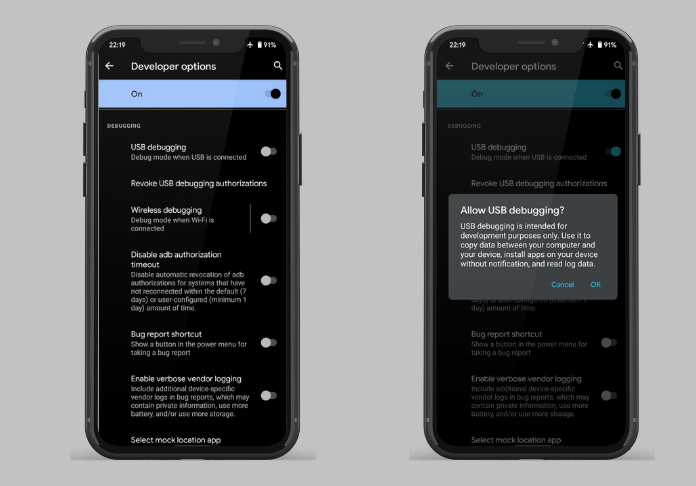
The exact location can differ between Samsung, Xiaomi, OnePlus, Motorola, Google Pixel, and other Android devices, so don’t worry if your menu looks slightly different.
Once USB debugging is enabled, disconnect and reconnect the phone.
3. Look for the USB Debugging Permission
This one is easy to overlook.
When you connect your phone to a computer for the first time, Android may display:
Allow USB debugging?
If you don’t approve that request, ADB may not be able to communicate with the phone.
Unlock your device and check the screen carefully.
If you see the prompt, tap Allow.
You can also enable the option to always allow the computer if you’re using your own trusted PC.
4. Try Another USB Cable
Here’s a surprisingly common culprit: the USB cable.
Cables that are made specifically for charging do not offer any sort of data connection. Your phone can happily charge while your computer has no usable data connection at all.
Try another cable that you know supports data transfer.
Also try a different USB port on the computer. If you’re using a USB hub, connect the phone directly to the computer instead.
Then run:
adb devices
again.
If the device suddenly appears, you’ve found the problem.
5. Change the USB Mode
Android may connect using a charging-only mode even though USB debugging is enabled.
After plugging in your phone, pull down the notification panel and tap the USB connection notification.
Look for an option such as:
File Transfer / Android Auto
or
File Transfer (MTP)
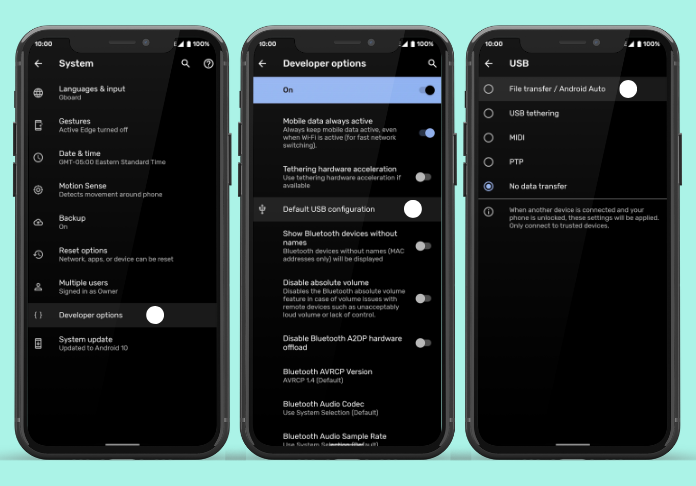
The wording varies between Android manufacturers and versions.
After changing the mode, check:
adb devices
6. Restart the ADB Server
Sometimes, ADB will freeze. Restarting ADB only takes a few seconds.
Run:
adb kill-server
adb start-server
adb devices
You should see something similar to:
List of devices attached
R58M12345AB device
Once the phone appears, start SCRCPY:
scrcpy
This simple restart has solved plenty of “everything is connected, but nothing works” situations.
7. Revoke USB Debugging Authorizations
If the previous authorization is saved by the system, you can do a reset to solve your problem.
On your phone, open:
Settings → Developer options → Revoke USB debugging authorizations
Confirm it.
Now disconnect your phone and connect it again.
Android should ask you to authorize the computer once more.
Tap Allow, then check:
adb devices
This comes in handy if SCRCPY had worked previously on that particular device but stopped working after switching computers or ADB versions.
8. Check Android USB Drivers on Windows
Windows users have another possible issue: USB drivers.
If your phone doesn’t appear correctly in Windows Device Manager, ADB may not have the driver it needs to communicate with the device.
Open:
Device Manager → Android Device / Portable Devices / Other Devices
Look for your phone or an unknown device with a warning icon.
Depending on your phone manufacturer, you may need the appropriate Android USB driver.
After installing or updating the driver, reconnect the phone and test:
adb devices
If Windows now recognizes the phone properly, try SCRCPY again.
9. Check for Multiple ADB Installations
This problem can be a little confusing.
ADB might already be set up in your system using Android Studio, the platform-tools bundle, Android tool, or some other application.
There will be an indication that the device is running a different version of ADB if there are duplicates.
On Windows, run:
where adb
On macOS or Linux:
which adb
You can also check the installed version:
adb version
If you find yourself with multiple ADB installations, then take care to configure PATH settings correctly or use the desired one for Android platform-tools.
10. Try Wireless Debugging
USB isn’t your only option.
Modern Android OS allows turning on wireless debugging, thus making it possible to use ADB remotely.
On your phone, go to:
Developer options → Wireless debugging
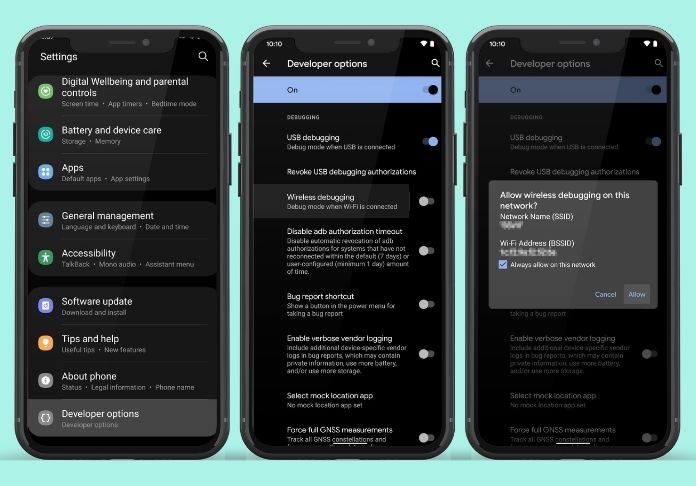
Enable it and follow Android’s pairing instructions.
Once the computer is connected, check:
adb devices
Your phone should appear as a network-connected device.
Then run:
scrcpy
Wireless debugging can be particularly useful if the USB port or cable is causing the problem.
Final Thoughts
A device detection problem can make SCRCPY seem complicated, but in most cases, it comes down to a communication issue between your Android phone and computer.
Once that connection is working properly, SCRCPY itself is remarkably straightforward.
The key is to approach the problem systematically instead of changing several settings at once. The proper configuration will help you return to using SCRCPY for smooth Android screen mirroring and control.