
If you’ve been using SCRCPY only to mirror your Android screen, you’re probably missing out on a lot of what it can actually do.
Hidden SCRCPY Features can give you more control over screen mirroring, recording, file transfers, performance, and even how you interact with your device from a PC.
Some of these features are easy to overlook because they aren’t part of SCRCPY’s basic interface.
Once you start exploring them, though, you may find yourself wondering how you used SCRCPY without them.
We are going to explore some lesser-known but extremely useful functions and demonstrate how to improve your usual SCRCPY experience by using them.
14 Hidden SCRCPY Features Worth Trying
1. Record Your Android Screen Without Showing the Mirror Window
You don’t always need to watch your phone screen while recording it. SCRCPY can record the Android display directly to a video file.
For example:
scrcpy --no-display --record=screen.mp4
This can be useful when you only want a recording and don’t need the mirrored window taking up space on your desktop.
You can also start a normal mirror and record at the same time:
scrcpy --record=screen.mp4
Thus, SCRCPY is perfect for tutorial creation, app demonstration, and gameplay capturing.
2. Turn Off the Phone’s Screen While Keeping SCRCPY Running
Another useful feature of SCRCPY software is its capability to turn off the device’s physical display screen while still using it on your computer.
Use:
scrcpy --turn-screen-off
The device’s display will go blank, but your Android device will continue to be usable in the SCRCPY software.
This is helpful when you do not want any distraction from your computer’s screen.
3. Use SCRCPY Wirelessly

It is not always necessary to have a USB cable. You can use the SCRCPY software in wireless mode when your Android device and computer are appropriately configured.
This option becomes very handy when you want to control your Android device without having a wire connected to your phone.
This is again dependent upon the version of your Android device and the setup of ADB.
4. Copy and Paste Between Your PC and Android
SCRCPY is able to synchronize your clipboard. So you can easily copy some text to your computer and then paste it into your Android application without retyping.
This feature comes in handy when you use applications such as messengers, browsers, or any other productivity applications on your PC.
5. Drag and Drop APK Files
Need to install an APK on your Android phone?
With SCRCPY running, you can drag an APK file onto the SCRCPY window. The APK can then be sent to the connected Android device for installation.
This saves you from manually transferring the APK to your phone first. As always, only install APK files from sources you trust.
6. Transfer Files by Dragging Them Into SCRCPY
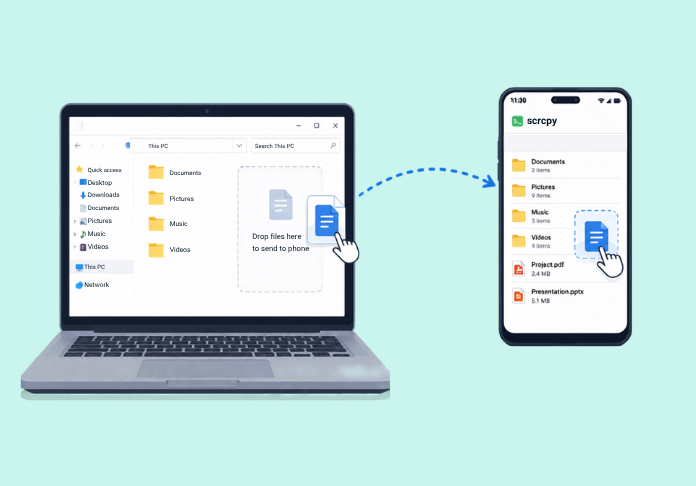
SCRCPY can also make file transfers between your computer and Android device more convenient.
Depending on the file type and Android configuration, you can drag files onto the SCRCPY window to send them to the device.
This can be much quicker than opening a file manager and manually moving files around.
7. Control the Bit Rate for Better Quality or Performance
You can configure the video bit rate to use for screen mirroring with SCRCPY.
For example:
scrcpy --video-bit-rate=8M
Setting a higher bit rate will improve picture quality, whereas a lower bit rate will decrease the bandwidth consumption.
That way, you can utilize this function when running SCRCPY over a wireless connection or when your computer finds it hard to run high-quality videos.
8. Change the Maximum Resolution
Mirroring your smartphone screen is not always necessary in full resolution.
To limit the video resolution, you can use:
scrcpy --max-size=1920
This way, you’ll decrease the strain on your PC and boost performance.
When you are only going to use SCRCPY for simple purposes, then a low resolution should be fine for you.
9. Start SCRCPY in Fullscreen Mode
Want your Android display to take over the screen?
Use:
scrcpy --fullscreen
This removes the normal windowed experience and gives you a larger viewing area.
Fullscreen mode can be particularly useful for gaming, watching content, or demonstrating an Android application.
10. Control Which Input Sources Are Enabled
SCRCPY isn’t limited to simply showing your Android screen. It can also control how input is handled.
Depending on the SCRCPY version, different options allow you to configure keyboard and mouse behavior.
This can be useful when you want to use your computer’s keyboard and mouse as the primary controls for your Android device.
11. Keep the Phone Awake While Connected
You can prevent the Android device from going to sleep while SCRCPY is running.
Use:
scrcpy --stay-awake
This is useful during long sessions when you don’t want the phone to lock or go to sleep while you’re working from your computer.
12. Start SCRCPY With a Specific Orientation
You can specify the orientation of your Android screen with the help of options related to rotation.
This will be very useful when working with testing, recordings, and applications with different behaviors in portrait and landscape modes.
13. Use SCRCPY from the Command Line
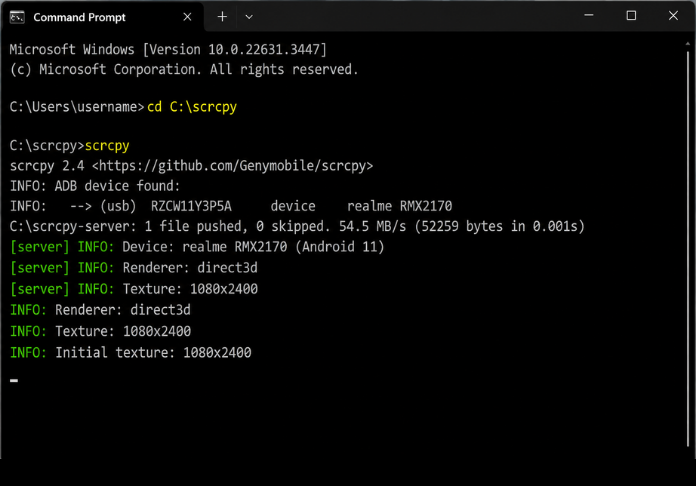
Perhaps the most significant benefit of SCRCPY is that one does not have to depend on the default executable launch option of SCRCPY.
Commands like:
scrcpy
can be issued after opening the Command Prompt or PowerShell window inside the SCRCPY directory. Options can also be provided to change session configurations:
scrcpy --max-size=1280 --video-bit-rate=8M
14. Check Available Options With One Command
Which features does your version of SCRCPY support?
Run:
scrcpy --help
This displays the available command-line options for your installed version.
Because SCRCPY continues to receive updates, checking the built-in help is one of the easiest ways to see which options are available on your system.
Which SCRCPY Features Are Most Useful?
That depends on how you use SCRCPY.
For everyday users, clipboard synchronization, drag-and-drop file transfers, fullscreen mode, and wireless connections can make a noticeable difference.
For content creators, screen recording, resolution controls, bit-rate settings, and window customization are particularly useful.
And if you’re a power user, the command-line options give you much more control over how SCRCPY behaves.
Closure
SCRCPY is much more than a basic Android screen-mirroring tool. Its command-line options and built-in features provide plenty of flexibility for recording, file transfers, wireless use, performance tuning, and device control.
Once you move beyond the default settings, SCRCPY becomes a much more capable tool for everyday Android use, testing, gaming, and productivity.