
Have you ever wished to use your Android smartphone without having to pick it up all the time when you’re working at your Linux PC?
Perhaps you would like to respond to a message or an app, copy text, and do other things while staying at work.
That’s where SCRCPY comes in handy.
SCRCPY is a lightweight, open-source tool that lets you mirror and control your Android phone from a Linux computer.
You can use your keyboard and mouse to operate your smartphone, move files, record video, and even do it via a wireless connection.
But here comes the best thing – there is no need to install any huge screen-mirroring software on your smartphone.
In this guide, we’ll walk through how to use SCRCPY on Linux, from installation and USB debugging to wireless connections and useful commands.
What Do You Need to Use SCRCPY on Linux?
Getting started doesn’t require much.
You’ll need:
- A Linux computer
- An Android smartphone
- A USB cable
- Android 5.0 or newer
- USB Debugging enabled
- ADB (Android Debug Bridge)
- SCRCPY installed on your Linux system
A suitable Wi-Fi connection is required for the same purpose.
Steps to Use SCRCPY on Linux
Step 1: Enable Developer Options on Android
In order to make Linux communicate with your Android device, you first need to enable Developer Options.
Developer Options menu may differ from one device (Samsung, Xiaomi, OnePlus, Motorola, Google Pixel, etc.) to another. However, the process is usually similar.
Open your phone’s:
Settings → About Phone
Look for Build Number.
Tap it seven times.
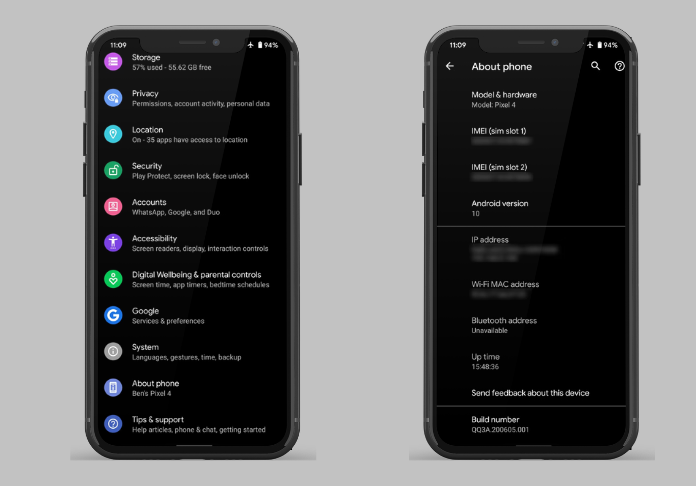
After a few taps, Android will usually tell you that you’re getting close to becoming a developer. Keep tapping until Developer Options are enabled.
You may need to enter your phone’s PIN or password.
Once finished, go back to Settings and look for:
System → Developer Options
On some phones, Developer Options may appear directly under the main Settings menu.
Step 2: Turn On USB Debugging
Now open Developer Options and find:
USB Debugging
Turn it on.
USB Debugging allows your computer to communicate with your Android device through ADB.
Don’t worry if Android shows a warning when you enable it. This feature is specifically designed for development and computer-to-device communication.
When you connect the phone to your Linux PC for the first time, Android should also show a message asking whether you want to allow USB debugging.
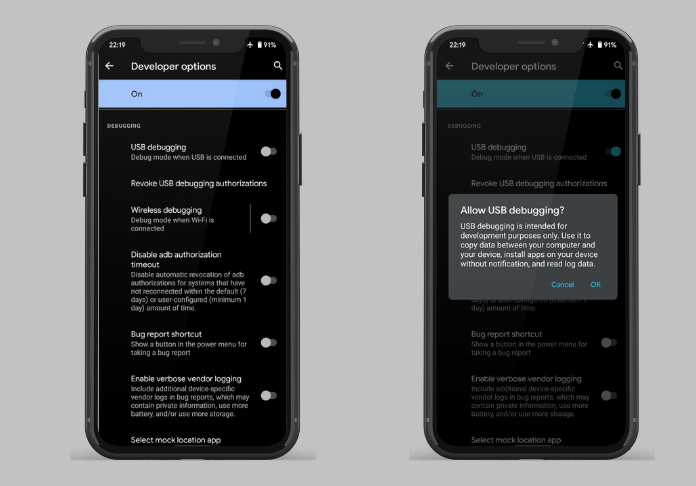
Tap Allow.
If you’re using your personal computer, you can choose the option to remember the computer.
Step 3: Install SCRCPY on Linux
The easiest way to install SCRCPY depends on the Linux distribution you’re using.
Ubuntu or Debian
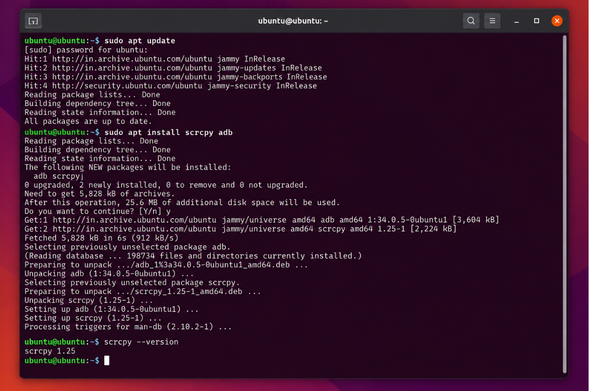
On supported versions, open Terminal and run:
sudo apt update
sudo apt install scrcpy adb
Once the installation finishes, check that SCRCPY is available:
scrcpy --version
If the terminal displays a version number, you’re ready to continue.
Fedora
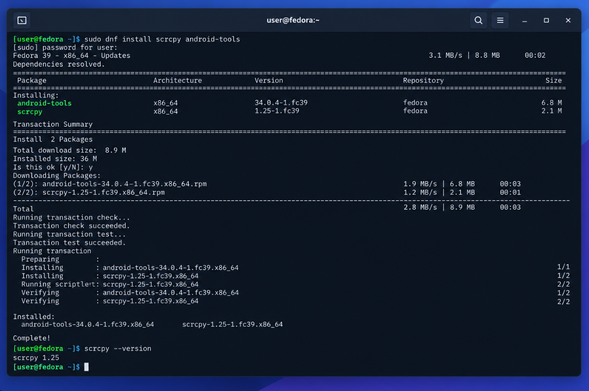
Fedora users can install SCRCPY and Android tools with:
sudo dnf install scrcpy android-tools
Then verify the installation:
scrcpy --version
Arch Linux
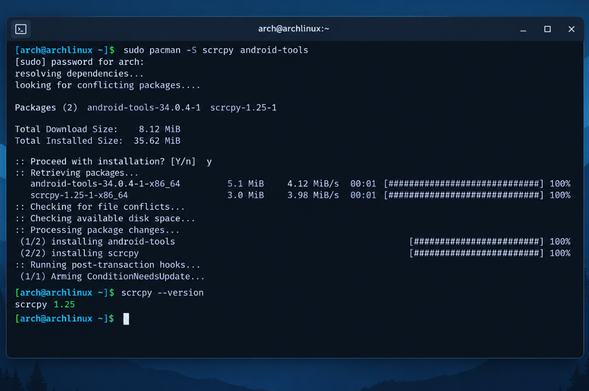
If you’re using Arch Linux, run:
sudo pacman -S scrcpy android-tools
Then check:
scrcpy --version
Package availability and versions will differ among Linux distributions; thus, should your Linux distribution lack the latest version, you should consult its documentation and see whether the SCRCPY project website offers other means of installing it.
Step 4: Connect Your Android Phone
Now comes the easy part.
Connect your Android phone to your Linux computer using a USB cable.
Make sure your phone is unlocked.
Open Terminal and run:
adb devices
You should see something similar to:
List of devices attached
XXXXXXXX device
The letters and numbers will be different for your phone.
If your Android device asks whether you want to allow USB debugging, tap Allow.
Run the command again:
adb devices
Your phone should now appear as a connected device.
Step 5: Start SCRCPY
Once ADB recognizes your phone, starting SCRCPY is surprisingly simple.
Run:
scrcpy
That’s it.
A new window will appear on your Linux desktop containing the display of your Android phone.
Experiment with pointing your mouse at the window and clicking around.
You can open applications, scroll through pages, type messages, and navigate Android without constantly picking up your phone.
Using Your Keyboard and Mouse
This is where SCRCPY becomes especially useful.
The keyboard on the Linux OS can be utilized to type into compatible Android apps, while the mouse would help with tapping, clicking, scrolling, and other types of interaction.
Consider the situation where you are drafting an e-mail on your computer running Linux and then get a message on your mobile device.
Instead of picking up the mobile phone, unlocking it, and using two different devices, you may just use the screen mirroring application on your desktop.
Once you get accustomed to such a way of interaction, returning to the separate device method might seem quite inconvenient.
Final Thoughts
SCRCPY makes it easy to connect and control your Android phone from a Linux PC.
With a simple setup, you can mirror your screen, use your keyboard and mouse, copy content, and even connect wirelessly.
If you want a lightweight and convenient way to manage your Android device from Linux, scrcpy is definitely worth trying.