
Want to mirror and control your Android phone from your computer without going through a traditional installation process? SCRCPY makes that possible.
Instead of installing SCRCPY like a normal desktop application, you can use its portable Windows archive. You simply download the ZIP file, extract it, connect your Android phone, and run the included executable.
The official SCRCPY project provides Windows ZIP releases that can be extracted and used directly.
It would be especially beneficial if you use a computer that belongs to someone else, do not have administrator rights, or just do not wish to install any new applications on your computer.
What You Need Before Starting
Before you begin, make sure you have:
- A Windows PC
- An Android phone running Android 5.0 (API 21) or newer
- A USB cable
- USB debugging enabled on your phone
- A downloaded SCRCPY Windows ZIP archive
You don’t need root access on the Android device. SCRCPY communicates with the phone through Android Debug Bridge (ADB).
How to Run SCRCPY Without Installing?
Step 1: Download the Portable SCRCPY Package
Start by downloading the latest SCRCPY version.
Choose the ZIP package that matches your Windows architecture. Most modern PCs use the 64-bit version.
Once the ZIP file has finished downloading, don’t look for a setup wizard. That’s the whole point of this method.
Step 2: Extract the ZIP File
Right-click the downloaded ZIP file and choose Extract All.
Select a convenient location, such as your Desktop or Documents folder.
Once extraction finishes, you’ll see a folder with SCRCPY and everything it needs to run. The official Windows package already comes with all the necessary parts, ADB included.
You can move this folder to another computer or USB drive later if you want to use the portable setup elsewhere.
Step 3: Enable USB Debugging on Your Android Phone
However, before SCRCPY is able to interact with your mobile device, it is necessary to enable USB debugging mode.
On most Android devices:
- Open Settings.
- Go to About phone.
- Find Build number.
- Tap it several times until Developer Options are enabled.
- Return to Settings and open Developer options.
- Turn on USB debugging.
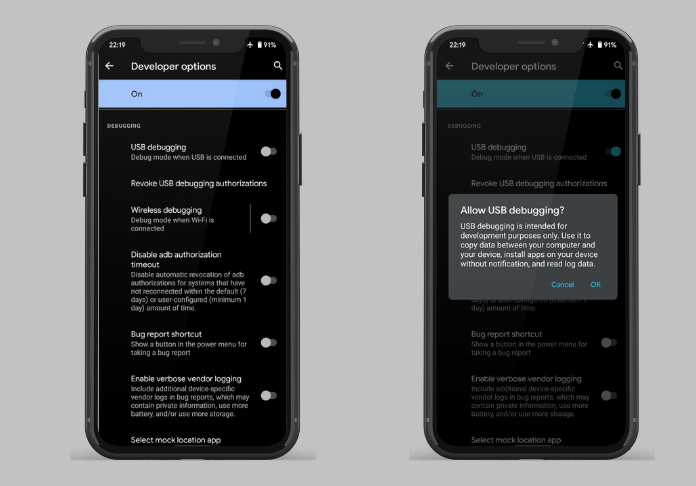
The exact menu names can vary depending on your phone manufacturer and Android version.
Step 4: Connect Your Phone to the PC
Connect your Android phone to the computer using a USB cable.
Your phone may display an “Allow USB debugging?” prompt. Tap Allow to authorize the computer.
The official SCRCPY documentation notes that the important part is accepting this USB debugging authorization so ADB can communicate with the device.
Step 5: Run SCRCPY Without Installing It
Open the folder where you extracted SCRCPY.
Find scrcpy.exe and double-click it.
If your phone is connected correctly and USB debugging is enabled, SCRCPY should start and display your Android screen in a desktop window.
That’s it; you’ve started SCRCPY without running a traditional installer.
Step 6: Run SCRCPY from the Terminal
You can also launch SCRCPY from PowerShell or Command Prompt.
Open a terminal inside the extracted SCRCPY folder and run:
scrcpy
Press Enter, and SCRCPY should start communicating with your Android device.
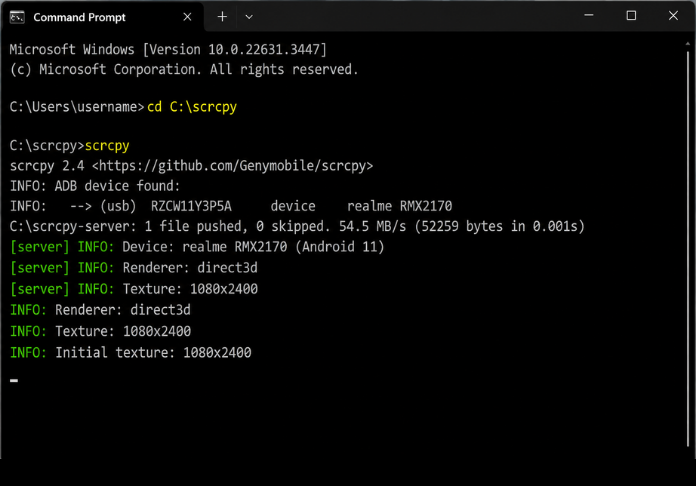
This method works for you if you want to execute command-line parameters, instead of only launching an application.
What if SCRCPY Doesn’t Detect Your Phone?
If nothing happens or SCRCPY reports that no device is available, check these things first:
1. Check USB Debugging
USB Debugging must not be disabled (you authorized the connection on the phone already).
2. Check the USB Cable
The USB cable you’re using might also fail for data transfer. Try a different USB cable or try a different port.
3. Check ADB
Open the extracted SCRCPY folder in a terminal and run:
adb devices
You should see your device listed.
If the device is showing up as “unauthorized,” look out for the USB debugging prompt on your phone’s screen and give your approval.
4. Restart the ADB Connection
If the device isn’t detected correctly, you can restart ADB:
adb kill-server
adb start-server
adb devices
Then try launching SCRCPY again.
Why Use SCRCPY Without Installing It?
There are several reasons this setup can be useful:
- No traditional installer – Just extract and run.
- Easy to move – Keep the folder on another drive or USB stick.
- Useful on shared PCs – You may not need to perform a system-wide installation.
- Simple to remove – Delete the extracted folder when you’re finished.
- Quick setup – There are fewer installation steps.
Final Thoughts
SCRCPY enables easy-to-use Android screen mirroring and access in a convenient and portable way that won’t install to your PC like typical desktop applications.
Portable design, ideal for anyone wanting to stream, share, record, and control their mobile device on their computer without any installation process.
It’s essentially portable, so when you want to use the functionalities of SCRCPY without having an app installed on your system, it is a convenient option.