
Are you someone who has ever found themselves in a situation where you need to use your phone games using the keyboard, respond to texts more swiftly, or even project information from your mobile device onto a larger screen?
Then being able to control Android from PC might just make things easier for you.
Over the years, we’ve found that constantly switching between a phone and a computer can slow down even simple tasks.
Tasks such as answering alerts, testing out apps, making tutorial videos, or even handling files become annoying after a while.
Once we started controlling Android devices directly from a computer, everyday workflows became faster, more comfortable, and far more productive.
Whether you are a developer, gamer, student, or even a person who wants a better way of using his or her phone.
This tutorial is going to teach you how to control Android from PC using SCRCPY, whether that computer is running Windows, macOS, or Linux.
Why Control Android from PC?
Using your Android phone from a computer isn’t just about convenience. It can improve productivity and make many everyday tasks easier.
Some common reasons include:
- Reply to messages faster using a full-sized keyboard.
- Mirror your phone to a larger display.
- Record tutorials or gameplay.
- Test Android apps during development.
- Control mobile games with a keyboard and mouse.
- Deliver presentations directly from your phone.
- Access your phone without constantly picking it up.
For many users, once they start controlling their Android from a computer, it’s hard to go back to using the phone alone.
Use SCRCPY to Control Android from PC
One of the simplest and most dependable options for controlling Android from a computer is SCRCPY.
It lets you mirror and control your Android device directly from your Windows, macOS, or Linux computer using your keyboard and mouse.
This can help you reply to messages, test apps, create tutorials, or finally play mobile games on your old device. And all of this without rooting.
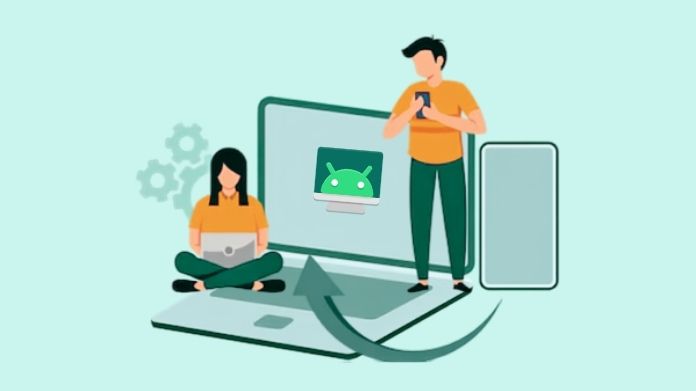
To get started, all you need is an Android device with enabled USB Debugging and SCRCPY installed on your computer.
After that, you can connect your phone via USB cable for the best experience or switch to wireless mode.
Lightweight, low-latency, cross-platform control of Android is surprisingly easy and satisfying with SCRCPY. And this is the best import and export of Android videos in real time.
How to Control Android from PC Using SCRCPY
Getting started is surprisingly simple.
Step 1: Download SCRCPY
Download SCRCPY, the latest version for your operating system, from a trusted source.
Step 2: Enable Developer Options
On your Android phone:
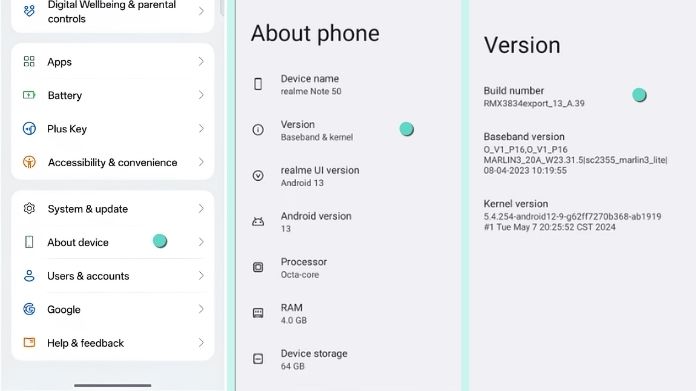
- Open Settings.
- Tap About Phone.
- Tap Build Number seven times.
- Developer Options will now appear in Settings.
Step 3: Enable USB Debugging
Inside Developer Options, enable USB Debugging.
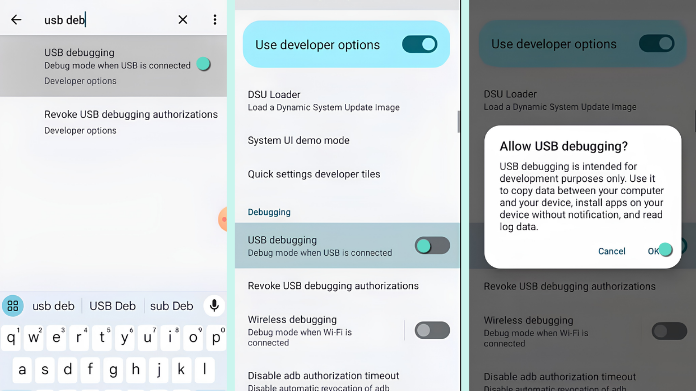
This allows your computer to communicate with your Android device through ADB.
Step 4: Connect Your Phone
Use a USB cable to connect your phone to your computer. When the Allow USB Debugging prompt appears on your phone, tap Allow.
Step 5: Launch SCRCPY
Open SCRCPY on your computer.
Your Android screen will come up within just a few seconds, allowing you to take control of your phone with your keyboard and mouse.
Can You Control Android Wirelessly?
Yes, SCRCPY also supports wireless control over your local Wi-Fi network.
A USB connection is normally required at the very beginning to enable communication between your devices.
You will then be able to proceed using a wireless connection and enjoy freedom of movement while not interrupting your session.
Wireless mode works well for:
- Demonstrations
- Presentations
- Casual browsing
- Remote testing
While this is great for general usage, if you’re planning on doing some competitive gaming or other things that require low-latency input, I’d recommend connecting via USB rather than over Wi-Fi.
Useful Keyboard and Mouse Controls
Once connected, your computer becomes the primary way to interact with your phone.
Some common actions include:
- Click to tap the screen
- Scroll using the mouse wheel
- Type with your keyboard
- Drag and drop within supported apps
- Copy and paste text
- Take screenshots
- Switch to fullscreen mode
Because of these shortcuts, using Android from a PC seems efficient and natural.
Tips for a Better Experience
To get the best performance when controlling Android from a computer:
- Whenever possible, use the original USB cord.
- Keep your Android device updated.
- Update ADB and platform tools regularly.
- Close unnecessary background applications.
- Use a stable Wi-Fi connection when working wirelessly.
- Enable high-performance power settings on your computer.
Small improvements like these can noticeably enhance responsiveness.
Final Thoughts
Control Android from PC becomes much easier. SCRCPY will help you easily perform tasks such as responding to messages, testing apps, recording tutorials, and playing games on your phone.
It runs fast, doesn’t hog resources, and works across different systems; plus, that low latency means actions feel instant.
To get started, connect your phone via USB, explore its features, and switch to wireless mode whenever you’re ready for greater flexibility.
